
At the end of 2025, the iPad lineup is in a pretty good place, all things considered. So as we enter the holiday buying season, I wanted to put together a buyer’s guide for anyone looking to pick up a new iPad or accessories this holiday season. This list is largely based on my experience using these products with a few exceptions of exact models that are no longer available.
Affiliate Disclosure: This buyer’s guide contains affiliate links. If you purchase through these links, SlatePad may earn a small commission at no additional cost to you. This helps support the site and our work. Read our full policy.
iPad (A16): The iPad For Most People
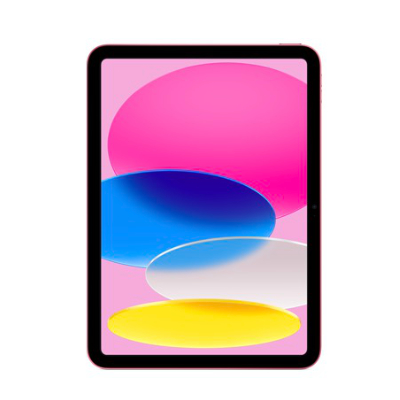
- Best option for anyone that just wants an iPad to handle the basics.
- A16 chip handles web, streaming, school work, and games with ease.
- Fun color options make it appealing for students and families.
- Non-laminated display and older Apple Pencil support are trade-offs.
As an iPad enthusiast, I can admit I’ve often looked down on the standard iPad. This probably stems a bit from it being the iPad that held onto the older home-button design for the longest.
That being said, after using it more over the last couple of weeks, I am surprised at just how good this iPad is.
First and foremost, it is the best-looking iPad by far. It is the only model with colors that can’t be confused with gray. This may not matter as much to you if you only use your iPad in a case, but it’s refreshing to have the option to choose between more vibrant colors or the understated Silver.
This iPad’s A16 chip isn’t the fastest or most modern by any stretch, but it handles everyday tasks with ease. Checking email, browsing the web, taking notes are all handled with ease on this machine. For someone that just needs a computer that handles the basics, you’ll be hard pressed to do better than this iPad.
With iPadOS 26, this iPad becomes an even better value computer:
- Full multi-window support including background tasks
- Support for all of Apple’s Pro apps: Final Cut Pro, Logic Pro, the iWork suite, and Swift Playground
- Runs almost all iPhone apps
- It comes in real colors
When paired with something like the Magic Keyboard Folio or the Logitech Combo Touch, you have a pretty capable entry level laptop alternative.
Why should you buy this iPad?
This iPad is great entry point for anyone new to the Apple ecosystem. The entry configuration now gets you 128 GB of storage, making it the config I’d recommend for most people.
This iPad is great for anyone that just wants an iPad for the basics: web browsing, watching video, listening to music, playing games, using educational apps, and document editing.
Why shouldn’t you buy this iPad?
Some of the places Apple chooses to cut corners on this iPad may bother some users.
It is the only iPad without a laminated screen, meaning there is a noticeable air gap between the glass and display. I find this more of an issue when looking at it off-angle. It also makes tapping or writing on the display louder than on other iPads.
This screen also does not the anti-reflective coating that available on other models., which means the screen can get really reflective in some environments. In an office setting, I find I have to crank up the brightness to see the screen.
It doesn’t support Apple’s more advanced styluses. To get the best Apple Pencil experience, you must use the 1st-generation Pencil from 2015. This model still uses the Lightning connector, which means you’ll need to use an adapter to connect it to this iPad. The adapter should come in the box if you’re buying the Pencil new, but will cost $9 otherwise.
It’s not a great experience. The obvious next-best choice would be the Apple Pencil (USB-C), but that stylus does not support pressure sensitivity. This is mostly important if you plan on using your tablet for art, but it’s worth noting.
The biggest negative from my perspective is the lack of full external-display support. I talk about this a lot because it was the feature that kept me from making an iPad my primary device. There’s really no reason this iPad can’t support extended-display mode. That support would be limited by its slower USB 2.0 port, but it can already drive a 4K display using mirroring.
iPad Air (M3):
For people who need more than the basics

- M3 chip delivers fast performance for multitasking, creative apps, and gaming.
- Laminated, anti-reflective display is a big step up from the standard iPad.
- Works with Apple Pencil Pro and modern keyboard cases.
- 11-inch is the better pick for portability; 13-inch feels more like a laptop replacement.
- Great option if you want “mostly Pro” capability without Pro pricing.
The iPad Air battles the iPad (A16) for the “iPad most people should buy” spot. It’s not quite an iPad Pro, but it offers significantly more than the standard iPad for about $250 more. Let’s look at what you gain.
The iPad Air gives you:
- A slightly thinner body (7.0 mm vs 6.1 mm)
- A laminated (and quieter) display
- An anti-reflective coating
- A much faster chip (A16 vs M3)
- More RAM (6 GB vs 8 GB)
- Faster Wi-Fi (Wi-Fi 6 vs Wi-Fi 6E)
- A faster USB port (USB 2.0 vs USB 3.2 Gen 2)
- Support for Apple Pencil Pro
- External Display Support
Why should you buy this iPad?
The iPad Air is the sweet spot in Apple’s lineup. It strikes a great balance between capability and cost. If you want an iPad that can go beyond basic tasks without paying the premium for the Pro, the Air is where things start to feel genuinely high-end.
The M3 chip delivers a big performance jump over the A16 in the standard iPad, especially in demanding apps like video editors, music production tools, and 3D sculpting apps. Paired with the laminated display, anti-reflective coating, faster USB-C port, faster Wi-Fi, and support for the Apple Pencil Pro, the experience feels closer to the iPad Pro than to the entry model.
And if you’re considering using an iPad as a primary device, the 13-inch option is a standout value. It offers the large-screen laptop-like experience many people want, at a significantly lower price than the Pro lineup. More screen space makes multitasking easier, and pairing it with an external display makes it a legitimate productivity machine.
Why shouldn’t you buy this iPad?
The iPad Air costs noticeably more than the standard iPad, and for some users, the improvements may not matter. If the primary use cases are more casual, browsing, streaming, or educational apps for a child, the standard iPad delivers a very similar day-to-day experience for less money.
The Air also lacks some premium features that have become defining elements of the Pro line, such as Face ID and the 120 Hz ProMotion display. If you care about the smoothest scrolling experience, the best display for media consumption, or want the most “futuristic” hardware, the Air may feel like a compromise.
And while the Air is powerful, it hasn’t really been evolving much in recent years. If you want major technological leaps, the Pro lineup is where Apple pushes boundaries like display tech, external display support, accessory design, and higher storage ceilings.
iPad Mini – The Best Travel Companion

- Compact size makes it ideal for travel, reading, and handheld use.
- A15 chip is still fast enough for everyday work, games, and entertainment.
- Perfect for note-taking with Apple Pencil and as a digital notebook.
- USB-C and external accessory support improve versatility.
- Small display isn’t ideal for multitasking or laptop-style workflows.
I find the iPad Mini hard to compare to the others in the lineup, simply because it offers its own unique and compelling value proposition.
It’s small.
Really, it’s a smaller iPad Air with a slower chip, but its size makes it the most portable iPad by far, and the one you’re most likely to take with you when you leave the house. It fits in suit-coat or jacket pockets (especially in winter). It’s the perfect size to be a mini notepad or a Kindle replacement. And thanks to iPadOS 26, you get pretty much the full, no compromise iPad experience in a device that takes up almost no space in your bag.
Why should you buy this iPad?
You want a small iPad 😁.
You want a device that fits in pretty much and bag (and some pockets).
You want a device that is the closest thing we’ll probably ever see to an Apple e-reader.
It’s also the ideal size for a young child as their first computer if you can get it on sale. It’s a hard sell at its $499 retail price for this purpose, but it often goes on sale for $100 off. Even better, a refurbished 6th-generation iPad Mini is still a solid option.
Why shouldn’t you buy this iPad?
Some people say the issue with “jelly scrolling” on the display still persists. I’ve never seen it on any unit I’ve used, but it could still be a thing.
As the smallest and most touch-focused iPad, the windowing changes in iPadOS 26 hit this iPad the hardest. If you choose to stick to Single-Window Mode, you lose Split View and Slide Over. If you choose windowed apps or Stage Manager, there’s not much room to shuffle windows, so you don’t gain much. Thankfully, Apple is starting to address touch-based multitasking issues in iPadOS 26.1 and 26.2.
Like the iPad (A16), it does not have full external-display support. I don’t ding the Mini as hard for this because I’ve never considered making something this small a primary device, but if you are, keep that in mind.
iPad Pro — Apple’s Best Mobile Computer
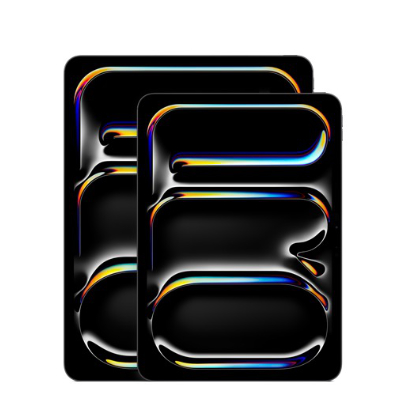
- M5 chip and upgraded Neural Engine make this the fastest, most capable iPad you can buy.
- Tandem OLED display with 120 Hz ProMotion is the best screen in the iPad lineup for HDR, media, and gaming.
- Four-speaker system and accessory support (Magic Keyboard, Apple Pencil Pro) make it a strong laptop alternative.
- 11-inch is great as a secondary or companion device; 13-inch shines as a primary computer or desktop replacement.
- Overkill for casual use. The iPad or iPad Air are better values if you don’t need the Pro’s screen and performance.
One of the things I love most about the latest iPad Pros is that I don’t have to choose between having the most powerful or the thinnest iPad. The M5 (or M4) iPad Pro gives you both.
I rely on the iPad Pro as my primary computer. Its combination of a big screen (13-inch model), M-series chip, premium-accessory support, and vast software library make it a great MacBook Air replacement. Of course, that’s only true if the software you need is available on iPadOS (which is true of switching to any platform). Combine this with 5G support in the cellular models, and you have a truly mobile and powerful workstation.
The tandem OLED display is still the best display in Apple’s lineup (unless you count the Vision Pro, but those are really more lenses than a screen). Between the display and the four-speaker audio system, the iPad Pro is Apple’s best device for media consumption.
For gaming, the Pro remains the only iPad with a 120 Hz refresh rate display. Even better, the new M5 supports driving an external 4K display at up to 120 hz as well. And while there aren’t many games that run well at that refresh rate, the experience is elevated for those that do.
Thanks to the additional AI accelerators in the M5 chip, the iPad Pro is going to be the most performant iPad for running local AI models, either from Apple or 3rd party apps.
Why should you buy this iPad?
The iPad Pro exists to deliver the best possible tablet experience without compromise. If you’re looking to replace a laptop or want a tablet that can handle demanding professional work, this is going to be your best bet.
The combination of the M5 chip, the Ultra Retina XDR tandem OLED display, and the ProMotion 120 Hz refresh rate enable workloads and experiences that the other iPads simply can’t match: high-resolution video editing, advanced music production, AAA gaming, and intensive AI-powered tools. It’s also the only iPad that supports up to 4K 120 Hz display output for a desktop-class setup.
Despite being the most powerful iPad, it’s also the thinnest and lightest, which means it’s easier to carry than many laptops while still feeling like a luxury piece of hardware. Paired with the Magic Keyboard and Apple Pencil Pro and optional cellular, it becomes one of the most capable and versatile portable computers Apple makes.
If you’re planning to make the iPad your primary device, or you simply want the best display and performance Apple has to offer, this is the iPad to buy.
Why shouldn’t you buy this iPad?
The iPad Pro is expensive, and the upgrade costs add up quickly. For many users, the improvements it offers over the iPad Air won’t make a meaningful difference day-to-day. If you mostly browse the web, use productivity apps, watch videos, or play casual games, you’ll get a very similar experience for far less money.
Some signature “Pro” features like ProMotion and Face ID are great to have, but they’re not essential for everyone. And if what you’re really after is a great media-consumption device, the Air or even the standard iPad will still deliver that without the premium price tag.
In short: unless you specifically need the added power, display tech, or professional workflow features, the iPad Air gives you much of the Pro experience at a more approachable price.
Mobile Accessories
Stylus
Each iPad supports two stylus options from Apple:
- iPad (A16) – 1st-generation Apple Pencil, Apple Pencil (USB-C)
- iPad Mini (A17 Pro), iPad Air (M3), iPad Pro (M5) – Apple Pencil (USB-C), Apple Pencil Pro
Each Apple Pencil shares a set of common features between them:
| Feature | Apple Pencil (1st generation) | Apple Pencil (USB-C) | Apple Pencil Pro |
|---|---|---|---|
| Pixel-perfect precision | ✓ | ✓ | ✓ |
| Low latency | ✓ | ✓ | ✓ |
| Tilt sensitivity | ✓ | ✓ | ✓ |
| Palm rejection | ✓ | ✓ | ✓ |
| Pressure sensitivity | ✓ | — | ✓ |
| Hover support | — | ✓ (on supported iPad models) | ✓ (on supported iPad models) |
| Barrel-roll rotation | — | — | ✓ |
| Squeeze gesture | — | — | ✓ |
| Advanced tool palette | — | — | ✓ |
| Magnetic attachment | — | ✓ | ✓ |
| Wireless charging | — | — | ✓ |
| USB-C charging | — | ✓ | — |
| Lightning charging | ✓ | — | — |
For a more basic stylus experience: consider the Apple Pencil (USB-C) If you’re not looking to create art, you will honestly get by fine with this Pencil.
A few notes about the Apple Pencil (USB-C):
- It connects magnetically to the side of your iPad but does not charge there. Charging and pairing only work over USB-C.
- When you pick it up, it takes a few seconds to wake up. This can be mildly irritating when trying to jot something down quickly.
The overall best Apple Pencil experience will come from the Apple Pencil Pro, if your iPad supports it. Seriously… between the inductive charging, the new squeeze feature, and haptic feedback, its a great tool to have.
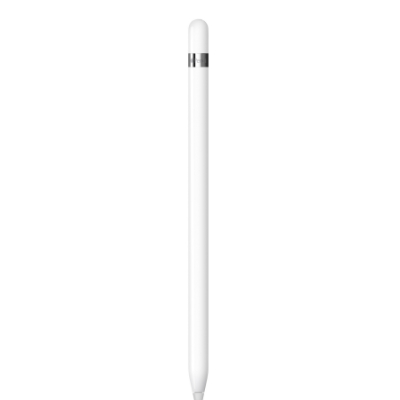
- Best option for older Lightning-based iPads.
- Still excellent for handwriting and illustration.
- Charging requires USB-C to Lightning adapter.
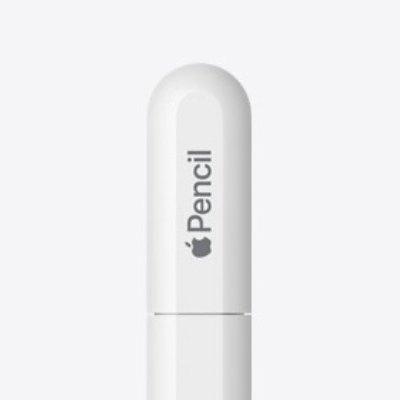
- Best budget choice for modern USB-C iPads.
- Magnetic attachment and hover support (on supported models).
- No pressure sensitivity — better for note-taking than art.

- Best overall stylus — ideal for artists, designers & pro workflows.
- Barrel roll, squeeze tool palette, and haptic feedback.
- Works with iPad Pro (M5) and iPad Air (M3).
Honorable Mention: ESR Geo Digital Pencil
This was the first third party stylus I used on iPadOS, and I still use from time to time. It became popular because it connects to Apple’s Find My network and only costed $30. On the Apple side, you need to move up to the $130 Apple Pencil Pro for that.
As a third party tool, it doesn’t have all of the capabilities of an Apple Pencil. There no pressure sensitivity or Apple Pencil Hover support, for example. But for the price, if you just need a tool for taking handwritten notes, this one does the job.

- Built-in “Find My” support — helpful in case you misplace your pencil.
- Much more affordable than Apple Pencil while covering most everyday stylus tasks.
- Ideal for students, casual note-takers, or anyone looking for a cost-effective iPad pen option.
Keyboard Case
Every iPad model has its own Apple Keyboard case option. It will almost certainly provide the best keyboard and trackpad experience, while also being the most expensive option.
While there are plenty of third party bluetooth keyboard cases to choose from, Logitech seems to be the only manufacturer that has official access to use the iPad’s built in Smart Connector. This is a preferable way to connect your keyboard case, since it doesn’t require bluetooth or a separate power source for the keyboard.
Keyboard cases for iPad (A16)

- The two-piece, detachable design lets you remove the keyboard but still prop up the iPad for watching video.
- Uses the Smart Connector — no pairing or charging needed.
- Turns the iPad into a very laptop-like setup.
- More expensive and adds noticeable weight compared to simple cases.
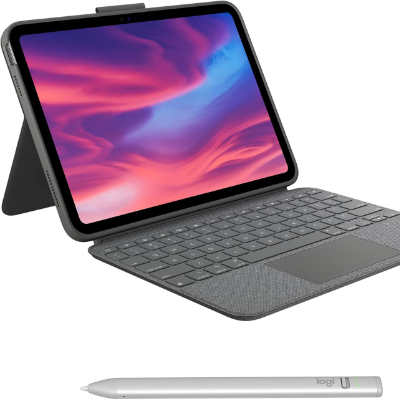
- More affordable alternative with an excellent keyboard and trackpad.
- Uses the Smart Connector — no Bluetooth battery to worry about.
- Detachable keyboard and kickstand give you more viewing angles.
- Bulkier and a bit more “case-like” than Apple’s cleaner design.
Keyboard cases for iPad Air (M3)

- Best overall typing and trackpad experience for the Air.
- Available for both 11-inch and 13-inch iPad Air (M3) sizes.
- Floating design makes the Air feel like a super-thin laptop.
- Premium price – worth it only if you type a lot on the iPad.
- Does not have backlit keys.
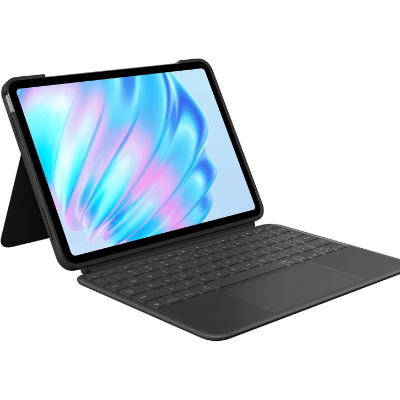
- Cheaper than Apple’s Magic Keyboard with a very good typing experience.
- Detachable keyboard and kickstand make it more flexible on a desk or couch.
- Great if you only need the keyboard some of the time, and still want a case for your iPad.
- Case is thicker and less sleek than Apple’s option.
Keyboard cases for iPad Pro (M5)

- The most “MacBook-like” keyboard and trackpad you can get for an iPad.
- Available for both 11-inch and 13-inch M5 iPad Pro models.
- Backlit keys, large trackpad with haptics, and function row.
- Expensive!
- Makes the Pro noticeably heavier in a bag.

- Less expensive than Apple’s Magic Keyboard with a solid typing feel.
- Detachable keyboard means you can use the Pro as a tablet without removing the whole case.
- Kickstand design is great on a desk, less ideal on your lap.
- Bulkier case and less “premium” hardware than Apple’s keyboard.
Third party manufacturers offer keyboard cases for the iPad Mini, but to me the device is too small to be effective in a laptop form factor (Apple apparently agrees). If you do want to use a standalone keyboard with your iPad Mini, I’ve always loved the 1st generation Logitech Keys To Go keyboard. It may be slightly impractical with its incredibly low profile keys, but man is it sleek and portable.

- Ideal companion for iPad Mini.
- Compact and light enough to throw in a bag. Perfect for travel, note-taking, or on-the-go typing.
- Spill-resistant fabric cover and silent keys make it good for cafés, classrooms, and library use.
- Not a keyboard case, which means you need a stand or case for iPad, but adds flexibility for typing on any device.
iPad Stand

There are many scenarios where people gravitate toward using their Magic Keyboard, where in reality I think they’d be better off using a dedicated stand. No need to have a keyboard hanging around when you’re watching media or playing games!
I did a video and blog post about the various stands I use, but for this post I’ll continue recommending this Kickstand Cover by TineeOwl. I love it because it’s as minimal as you can get. It’s a kickstand-style back cover, no additional case required, and it uses the built-in magnets to attach. It doesn’t take up much room in your bag, and its great as part of a minimal travel setup.

- Lightweight kickstand cover.
- Adjustable stand supports portrait and landscape modes which makes it great for media, note taking, or presenting.
- Budget-friendly alternative to premium folios; protective but thinner keyboard features are absent.
Folio
As part of your iPad travel kit, you’ll likely want some kind of folio case. This is one of the few cases where I find it hard to recommend the Apple option. As nice as the Smart Folios are, they don’t do much to justify their high price tags.
There’s no shortage of third party options that provide better value and functionality.
One that I like is the Pitaka MagEZ Folio 2. While its ability to fold into different configurations is important, I’ll be honest, I bought it because it came in a nice white color that looks incredibly clean. It does get dirty from time to time, so keep that in mind.

- Magnetic folio stand for iPad, supports both portrait and landscape modes.
- Built-in stylus flap supports Apple Pencil and keeps it within reach.
- Great value accessory for iPad users who don’t need a full keyboard.
This folio also has a stylus flap, which looks cooler/more professional to me, but that’s a personal preference.
The other folio I use is the Moft Dynamic Folio.

- Elegant magnetic folio stand-case that attaches via iPad’s flat edge.
- Ultra-slim and lightweight compared with bulkier keyboards — ideal when portability is key.
- Support many different postures, including portrait orientation
Disclaimer: I’ve partnered with Moft in the past, and the folio I’m about to mention was provided to me by them.
I’ve been a fan of Moft accessories since before they collaborated with me, and their Dynamic Float Folio is something I would have bought anyway.
Both folios support portrait orientation. I’m a broken record here, but the ability for an iPad to work just as well in portrait and landscape orientation is one of the big benefits of the tablet form factor. It makes reading and working with documents much more natural than on a laptop.
Desktop Accessories
With an M-series iPad Pro or iPad Air, you can build out a pretty capable desk setup to enhance your productivity. Here are the accessories I use and/or recommend.
Thunderbolt Dock
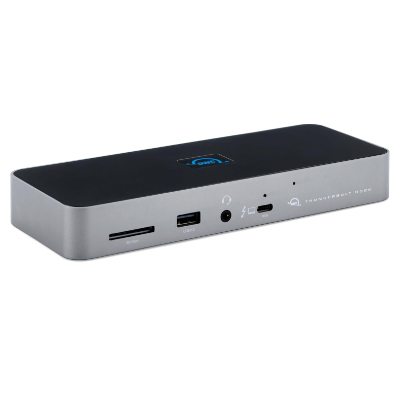
- 96W passthrough charging — powerful enough for laptop + iPad desk setups.
- Loads of connectivity including USB-A, USB-C, Gigabit Ethernet, and SD card reader.
- Great choice if you switch between iPad, Mac, and PC — highly versatile.
I built my desk setup to work for both my work Mac and my personal iPad Pro. The key part of that setup is a good Thunderbolt dock.
I’ve used a couple with my iPad Pro, but I imagine any certified Thunderbolt dock will work. While the iPad Pro is the only iPad with a Thunderbolt port, I had no issues using the setup with my M3 iPad Air.
My current dock is an 11-port Thunderbolt Dock from OWC.
The other one I’ve used is the Razer Thunderbolt 4 Dock. It looked like it had as many USB-C ports as USB-A, which is rare. The only frustration was that the RGB lighting can only be configured on Windows.

- Includes USB-A & USB-C ports, 2.5 GbE, SD card reader and 90 W laptop charging pass-through — ideal for an iPad + Mac dual setup.
- Broad compatibility with Mac, PC and modern USB-C devices; great as one hub for your ecosystem.
- Compact and clean, but expensive.
The only reason I’m not still using it is because it fell one too many times while trying to mount it under my desk.
Desktop Keyboard
Here’s the part where I really wish I could recommend Apple’s standalone Magic Keyboard, because I really do enjoy typing on it. Unfortunately, it didn’t fit the needs of my multi-computer setup. I wanted a keyboard that would either be paired to multiple devices at once, or at least let me switch between them quickly.
The Nuphy Air75 is a wireless mechanical keyboard that I bought mostly because I thought it looked great, but also support multi-device pairing. Even better, the USB-A dongle works with my Thunderbolt dock so that the keyboard automatically moves to whichever iPad or Mac I have plugged in.

- 75% layout — compact enough for desk flexibility, but with arrow keys and arrow-cluster functionality.
- Smooth mechanical switches with satisfying tactile feedback — great for writing, coding, or heavy typing sessions.
- Wireless (or wired) connectivity — works with iPad via Bluetooth or USB-C, and also with Mac/PC.
- Minimalist design and premium build quality — matches well with iPad + monitor desktop setups.
- Durable battery and backlit keys — ideal for long work sessions or low-light environments.
4K Monitor
There are so many great options for 4K displays now that it’s hard to go wrong. The monitor I happily used for years with both the iPad and the Mac was an LG UltraFine 27-inch 4K display (model 27GP950-B.AUS). It doesn’t appear to be for sale anymore, and this monitor seems to be the closest replacement.
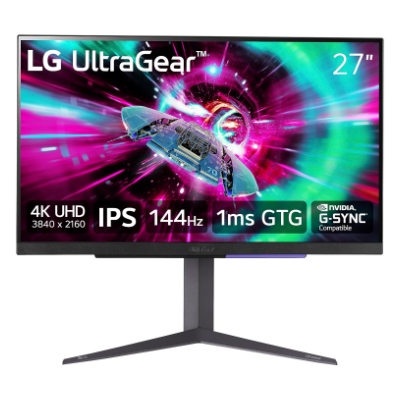
- 4K (3840×2160) resolution paired with up to 144 Hz refresh rate—ideal for high-resolution iPad workflows, editing, and screen mirroring.
- 27″ size balances desk space and screen real estate—works well with 11-inch iPad or a split iPad-as-second-screen setup.
One monitor that replaced it was the LG 32GS95UV OLED gaming monitor. It supports refresh rates up to 240 Hz at 4K and 480 Hz at 1080p. It doesn’t get a ton of use with the iPad Pro, but it’s an amazing overall monitor.
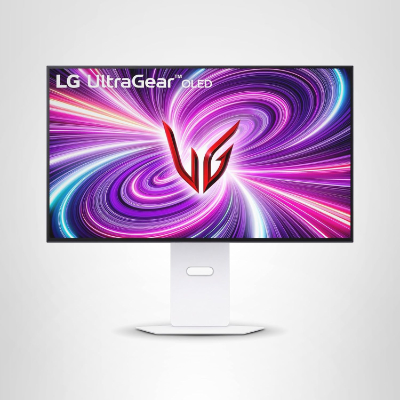
- 32 Inch OLED monitor that’s great for gaming or general productivity
- The M5 iPad Pro can drive this display at 120 using DisplayPort
Honorable Mention – Apple Studio Display
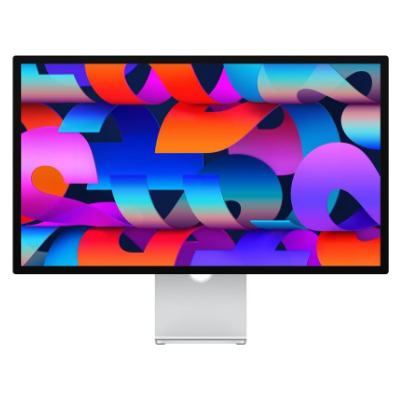
- Beautiful 5K display paired with Apple’s excellent industrial design
- Utilizing Thunderbolt, the display can also serve as something of a hub for the iPad.
- 60 hz refresh rate is unfortunate at this price point.
The iPad Pro and iPad Air can drive up to a 6K display (including Apple’s Pro Display XDR), but I mostly use mine with the Apple Studio Display. With its 5K resolution, it’s a great monitor for productivity and creative work.
My only issues are its price and the limited port selection. I know the monitor works with Windows, but I don’t think everything works as seamlessly as it does on macOS or now iPadOS. Ideally, your monitor of choice should be versatile enough to work well with any computer.
Leave a Reply